Use cases: Personalization, Gen AI
Industries: Media, Telecommunications
Products and Tools: MongoDB Atlas, MongoDB Vector Search, MongoDB Atlas Stream Processing
Partners: Voyage AI, Azure OpenAI
Solution Overview
When a new user lands on your news site, you have seconds to understand what they are looking for before they might lose interest and leave. This introduces the cold start problem: how do you recommend content to users with no prior data about them?
Consider an anonymous user who lands on your site and clicks three articles:
"NVIDIA creates new AI chip"
"TSMC expands production in Arizona"
"Intel stock drops amid delays"
A simple keyword search would only recommend other articles about Intel or Arizona. However, an intelligent system recognizes that all three clicks relate to semiconductor supply chains. This allows it to recommend relevant articles like "The Future of Silicon Valley," even when they don't share keywords with the user's browsing history.
The solution in this article builds an intelligent media-personalization system that ingests and processes clickstream data to generate a natural-language summary of the user's interests and recommend relevant articles that the user is more likely to engage with.
This solution combines:
Atlas Stream Processing for real-time data ingestion, enrichment, and LLM integration to summarize user intent from clickstream data
Atlas Vector Search with automated Voyage AI embeddings for semantic retrieval and recommendations
Reference Architecture
This architecture shows how to build an AI-driven media recommendation engine that ingests, processes, and reacts to user behavior in real time using MongoDB Atlas.

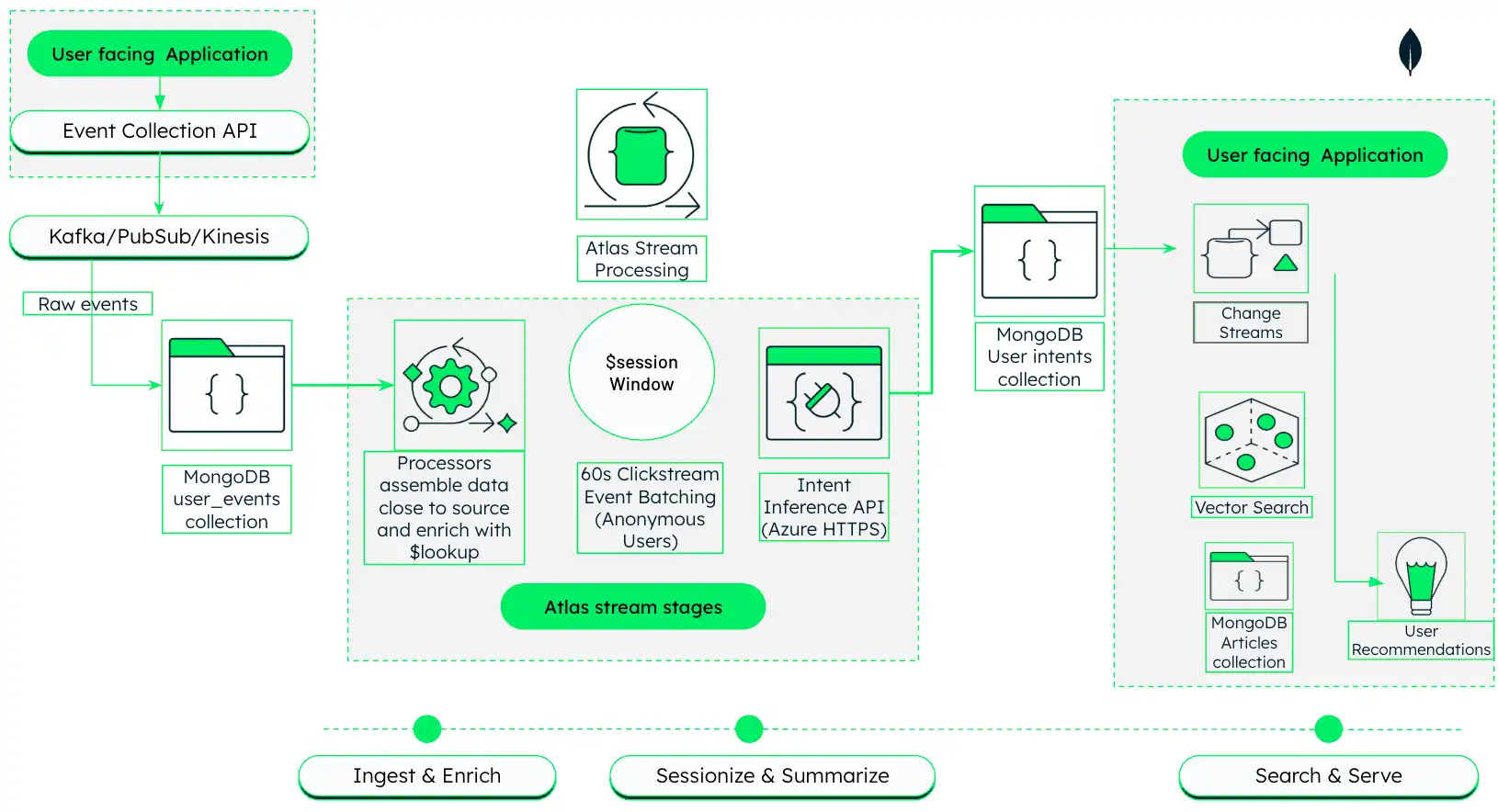
Figure 1. AI-driven media personalization architecture with Atlas Stream Processing and MongoDB Vector Search
This architecture operates in three phases, which are described in detail in the next sections:
Ingest and Enrich: Capture raw clickstream events from the user-facing application and join them with article metadata in real time using Atlas Stream Processing.
Sessionize and Summarize: Group related clicks into sessions and use an LLM to generate natural-language summaries of user interests.
Search and Serve: Use generated summaries to drive semantic vector search and return personalized recommendations.
Phase 1: Ingest and Enrich Clickstream Data
In the first phase, this solution architecture uses Atlas Stream Processing to ingest raw clickstream data from your media platform and enrich it with metadata from the articles in your database.
Set up your data sources.
This solution uses the following two collections in the news
database of the same MongoDB cluster:
The articles collection contains metadata about the articles in your
catalog. In this example, the collection is in the news database of the ClickstreamCluster cluster.
Each document in the collection represents an article and contains relevant metadata. For example:
{ "_id": { "$oid": "696493bfbc1084032ac0adfe" }, "title": "Ukraine updates, Day 6: ‘We are sacrificing our lives for freedom,’ Zelenskyy gets standing ovation after speech to European parliament", "link": "https://nationalpost.com/news/world/ukraine-updates-day-6-russia-kyiv", "keywords": null, "creator": [ "National Post Wire Services" ], "video_url": null, "description": "Russia escalated shelling overnight of key cities in Ukraine as its troops on the ground move slowly in a large convoy toward the capital, Kyiv", "content": "8:20 a.m. EST — Ukraine's Zelenskyy tells EU: 'Prove that you are with us\" Read More", "pubDate": "2022-03-01 13:45:04", "expire_at": "Wed, 07 Sep 2022 13:45:04 GMT", "image_url": null, "source_id": "nationalpost", "country": [ "canada" ], "category": [ "top" ], "language": "english" }
The user_events collection contains raw clickstream events ingested from
your user-facing application. In this example, the collection is in the
news database of the ClickstreamCluster cluster.
You can set up a clickstream data source using your preferred
event collection system. To recreate the method shown in the
reference architecture diagram, implement an event collection
API in your user-facing application to send click events to an
Apache Kafka topic. Then, use the MongoDB Kafka Sink Connector to
read from the clickstream topic and write to your MongoDB
cluster's user_events collection.
Each article click generates an event document with fields like
session_id, article_id, and timestamp. For example:
{ "_id": { "$oid": "696a1ecd66a51be18fffb8fa" }, "user_id": "user-2", "session_id": "sess-6a0d8837-a5f9-4ef5-8b00-78e9bf7a825c", "timestamp": { "$date": "2026-01-16T16:49:41.208Z" }, "event_type": "read", "article_id": { "$oid": "696493e6bc1084032ac116ed" }, "device": "desktop", "metadata": { "time_on_page": 54, "referral": "https://guzman.com/main/search/listmain.jsp" } }
Create a Stream Processing Workspace.
In Atlas, go to the Stream Processing page for your project.
If it's not already displayed, select the organization that contains your project from the Organizations menu in the navigation bar.
If it's not already displayed, select your project from the Projects menu in the navigation bar.
In the sidebar, click Stream Processing under the Streaming Data heading.
The Stream Processing page displays.
Click Create a workspace.
On the Create a stream processing workspace page, configure your workspace as follows:
Tier:
SP30Provider:
AWSRegion:
us-east-1Workspace Name:
article-personalization
Add a connection for your clickstream and article data.
The stream processor needs connections to both your clickstream data and your article metadata to perform the enrichment. Both data sources should be in the same Atlas cluster.
In the pane for your stream processing workspace, click Manage.
In the Connection Registry tab, click + Add Connection in the upper right.
On the Edit Connection page, configure your connection as follows:
Connection Type:
Atlas DatabaseConnection Name:
usereventsAtlas Cluster: The name of the cluster where your clickstream and article data lives (for example,
ClickstreamCluster)Execute As:
Read and write to any database
Click Save changes to create the connection.
Create a persistent stream processor.
Create a stream processor named userIntentSummarizer with
stages that read raw clickstream events from the user_events
collection and enrich the events with article metadata.
On the Stream Processing page for your Atlas project, click Manage in the pane for your stream processing workspace.
In the JSON editor, copy and paste the following JSON definition into the JSON editor text box to define a stream processor named
userIntentSummarizerwith these stages:$source: Reads raw clickstream events from theuser_eventscollection in thenewsdatabase of your connected clickstream cluster (usereventsconnection).$lookup: Joins the raw clickstream events with thearticlescollection based on thearticle_idfield, bringing in relevant article metadata from thedescription,keywords, andtitlefields.$addFields: Projects thedescription,keywords, andtitlefields from thearticle_detailsfield into the top-level of the event stream to make them easily accessible for downstream stages.$project: Projects relevant fields for downstream processing.
{ "$source": { "connectionName": "userevents", "db": "news", "collection": "user_events" } }, { "$lookup": { "from": { "connectionName": "userevents", "db": "news", "coll": "articles" }, "localField": "article_id", "foreignField": "_id", "as": "article_details", "pipeline": [ { "$project": { "_id": 0, "description": 1, "keywords": 1, "title": 1 } } ] } }, { "$addFields": { "description": { "$arrayElemAt": [ "$article_details.description", 0 ] }, "keywords": { "$arrayElemAt": [ "$article_details.keywords", 0 ] }, "title": { "$arrayElemAt": [ "$article_details.title", 0 ] } } }, { "$project": { "userId": 1, "article_id": 1, "eventTime": 1, "event_type": 1, "device": 1, "session_id": 1, "description": 1, "keywords": 1, "title": 1 } }, Click Update stream processor to save your changes.
Phase 2: Sessionize and Summarize User Behavior
In this phase, we extend the stream processor pipeline to group related clicks into sessions and use an LLM to generate a natural-language summary of each session that describes the user's interests.
Connect your LLM provider to your stream processing workspace.
Add an external HTTPS connection to your LLM provider (for example, Azure OpenAI) to enable the stream processor to call the LLM directly from the pipeline to enrich your data:
In the pane for your stream processing workspace, click Manage.
In the Connection Registry tab, click + Add Connection in the upper right.
Configure the connection as follows:
Connection Type:
HTTPSConnection Name:
azureopenaiURL: The endpoint URL for your Azure OpenAI instance
Headers: Add these key-value pairs to the headers:
Key:
Content-Type, Value:application/jsonKey:
api-key, Value: Your Azure OpenAI API key
Sessionize the clickstream data using the $sessionWindow stage.
Add a $sessionWindow stage to your stream processor
pipeline to group related events into sessions based on a
specified session gap. This solution defines a session as a
sequence of events from the same session_id with
no inactivity gap longer than 60 seconds.
Add this stage to your userIntentSummarizer pipeline after the
enrichment stages:
{ "$sessionWindow": { "partitionBy": "$session_id", "gap": { "unit": "second", "size": 60 }, "pipeline": [{ "$group": { "_id": "$session_id", "titles": { "$push": "$title" } } }] } }
Summarize user sessions using the $https stage.
Add an $https stage to call your LLM provider directly
from your stream processing pipeline. This solution calls Azure
OpenAI to generate a natural-language summary of each session that
describes the user's interests based on the article titles in the
session.
Add this stage to your pipeline after the $sessionWindow
stage:
{ "$https": { "connectionName": "azureopenai", "method": "POST", "as": "apiResults", "config": { "parseJsonStrings": true }, "payload": [ { "$project": { "_id": 0, "model": "gpt-4o-mini", "response_format": { "type": "json_object" }, "messages": [ { "role": "system", "content": "You are an analytical assistant that specializes in behavioral summarization. You analyze short-term reading activity and infer user interests without making personal or sensitive assumptions the create a special field called summary. Summary must be a special field in the response. Respond only in JSON format.Return a JSON object with the following keys in this order: \n reasoning: (Internal scratchpad, briefly explain your analysis) \n user_interests: (The list of inferred interests) \n summary: (A concise summary based on the interests above)" }, { "role": "user", "content": { "$toString": "$titles" } } ] } } ] } }
Note
The stream processor itself is "intelligent." It transforms a list of titles into a semantic summary (for example, "User is researching semiconductor manufacturing logistics") before the data reaches the disk. This differs fundamentally from traditional batch processing pipelines, which typically write raw session data to a database, then call an external API from an application server.
Write session summaries to a new collection.
Add the following stages to the pipeline to extract the summary from the LLM output and write it to a new collection:
$match: Filters out any sessions where the LLM call failed and returned an error to avoid writing incomplete data to the database.$addFields: Extracts thesummaryfield from the LLM output and adds it to the top level of the document.$project: Removes the raw LLM output from the document to reduce noise and storage costs.$merge: Writes the resulting documents to a new collection calleduser_intentin thenewsdatabase of your clickstream cluster (usereventsconnection). Each document in this collection represents a user session and contains a summary of the user's interests.
{ "$match": { "titles": { "$exists": true }, "apiResults": { "$exists": true } } }, { "$addFields": { "summary": { "$arrayElemAt": [ "$apiResults.choices.message.content.summary", 0 ] } } }, { "$project": { "apiResults": 0 } }, { "$merge": { "into": { "coll": "user_intent", "connectionName": "userevents", "db": "news" } } }
Start the stream processor.
When you're ready to start summarizing your clickstream data, click
the Start icon for the userIntentSummarizer
processor in the list of stream processors for your stream processing workspace.
This pipeline should write documents to the user_intent
collection that contain session summaries that capture the user's
interests. For example:
{ "_id": "sess-6a0d8837-a5f9-4ef5-8b00-78e9bf7a825c", "summary": "The user seems interested in geopolitical developments, especially in the Middle East, US political strategies involving Trump, and legal aspects of government operations.", "titles": [ "Israel and Hamas agree to part of Trump's Gaza peace plan, will free hostages and prisoners", "Top officials from US and Qatar join talks aimed at brokering peace in Gaza", "How Trump secured a Gaza breakthrough", "Ontario's anti-tariff ad is clever, effective and legally sound, experts say", "Shutdown? Trump's been dismantling the government all year", "AP News Summary at 7:58 p.m. EDT" ] }
The following is the full JSON definition for the
userIntentSummarizer stream processor that performs all the
operations described in Phases 1 and 2, including ingesting
clickstream data, enriching it with article metadata, sessionizing
user behavior, calling an LLM to summarize user intent, and writing
the summaries to a new collection.
{ "name": "userIntentSummarizer", "pipeline": [ { "$source": { "connectionName": "userevents", "db": "news", "collection": "user_events" } }, { "$lookup": { "from": { "connectionName": "userevents", "db": "news", "coll": "articles" }, "localField": "article_id", "foreignField": "_id", "as": "article_details", "pipeline": [ { "$project": { "_id": 0, "description": 1, "keywords": 1, "title": 1 } } ] } }, { "$addFields": { "description": { "$arrayElemAt": [ "$article_details.description", 0 ] }, "keywords": { "$arrayElemAt": [ "$article_details.keywords", 0 ] }, "title": { "$arrayElemAt": [ "$article_details.title", 0 ] } } }, { "$project": { "userId": 1, "article_id": 1, "eventTime": 1, "event_type": 1, "device": 1, "session_id": 1, "description": 1, "keywords": 1, "title": 1 } }, { "$sessionWindow": { "partitionBy": "$session_id", "gap": { "unit": "second", "size": 60 }, "pipeline": [{ "$group": { "_id": "$session_id", "titles": { "$push": "$title" } } }] } }, { "$https": { "connectionName": "azureopenai", "method": "POST", "as": "apiResults", "config": { "parseJsonStrings": true }, "payload": [ { "$project": { "_id": 0, "model": "gpt-4o-mini", "response_format": { "type": "json_object" }, "messages": [ { "role": "system", "content": "You are an analytical assistant that specializes in behavioral summarization. You analyze short-term reading activity and infer user interests without making personal or sensitive assumptions then create a special field called summary. Summary must be a special field in the response. Respond only in JSON format.Return a JSON object with the following keys in this order: \n reasoning: (Internal scratchpad, briefly explain your analysis) \n user_interests: (The list of inferred interests) \n summary: (A concise summary based on the interests above)" }, { "role": "user", "content": { "$toString": "$titles" } } ] } } ] } }, { "$match": { "titles": { "$exists": true }, "apiResults": { "$exists": true } } }, { "$addFields": { "summary": { "$arrayElemAt": [ "$apiResults.choices.message.content.summary", 0 ] } } }, { "$project": { "apiResults": 0 } }, { "$merge": { "into": { "coll": "user_intent", "connectionName": "userevents", "db": "news" } } } ] }
Phase 3: Semantic Search and Serve Personalized Recommendations
Finally, we use MongoDB Vector Search to perform semantic search over the article catalog using the session summaries generated in the previous phase to drive personalized content recommendations.
Prepare article data for semantic retrieval.
Before you can perform semantic search, you need to generate
vector embeddings for your article data. To do this, create a
MongoDB Vector Search index named vector_index that indexes the
description field of your articles collection as the
autoEmbed type. This instructs MongoDB Vector Search to use Automated
Embedding to automatically generate vector
embeddings for the description field whenever documents are
inserted or updated in the collection.
Important
Automated embedding is available as a Preview feature only for MongoDB Community Edition v8.2 and later. The feature and the corresponding documentation might change at any time during the Preview period. To learn more, see Preview Features.
Atlas supports manual embedding in all editions of MongoDB.
Use this JSON definition to create a vector index on these fields:
The
descriptionfield as theautoEmbedtype to instruct MongoDB Vector Search to automatically generate vector embeddings for thedescriptionfield using thevoyage-4-largeembedding model whenever documents are inserted or updated in the collection.The
titlefield as thefiltertype to prefilter the data for the semantic search using the string value in the field. This allows you to exclude articles the user has already read from search results.
{ "fields": [ { "type": "autoEmbed", "modalitytype": "text", "path": "description", "model": "voyage-4-large" }, { "type": "filter", "path": "title" } ] }
Run semantic search queries to serve personalized recommendations.
When a user visits your site, take the summary of their current session and use it as the query for a vector search against your article catalog. Since you enabled Automated Embedding on the index, MongoDB Vector Search automatically generates the embedding for the summary at query time and uses it as the effective query vector.
This example shows a simplified vector search query that uses the
session summary as the query vector and excludes articles the
user has already read based on the titles field:
[{ "$vectorSearch": { "index": "vector_index", // Vector index with autoEmbed on article descriptions "path": "description", "query": { "text": "<session-summary>" // Session summary from user_intent document }, "numCandidates": 100, "filter": { "title": { "$nin": [<read-titles>] } // Exclude articles the array of titles in the user_intent document } } }]
Key Learnings
This architecture demonstrates several important advancements in building modern data products:
Reduced latency: Embedding LLM calls directly inside the stream processor eliminates multiple network hops and intermediate persistence layers. The system transforms raw clicks into actionable intent in near real time.
Enhanced developer experience: Define pipelines with JSON-based MQL, enabling teams that already know MongoDB queries to build advanced streaming and AI-powered workloads without learning new DSLs or provisioning additional infrastructure.
Semantic personalization: Move beyond keyword matching and overnight batch jobs to build systems that listen, think, and respond instantly to user behavior.
Authors
Vinod Krishnan, Solutions Architect, MongoDB
Learn More
To understand how Atlas Vector Search powers semantic search and enables real-time analytics, visit the Atlas Vector Search page.
To learn how MongoDB is transforming media operations, read the AI-Powered Media Personalization: MongoDB and Vector Search article.
To discover how MongoDB supports modern media workflows, visit the MongoDB for Media and Entertainment page.
To learn more about Atlas Stream Processing, visit the Atlas Stream Processing documentation.