You can modify your existing entity-relationship diagram in Compass to plan changes to your data model without affecting your actual data.
About this Task
In the Data Modeling tab, you can:
Add or remove collections
Rename collections
Note
Any changes you make to your entity-relationship diagram won't affect your actual database.
Before You Begin
You must have an existing entity-relationship diagram in Compass to modify the fields. To create a new diagram, see Generate an Entity-Relationship Diagram in Compass.
Steps
Add a New Collection
To add a new collection to your entity-relationship diagram:
Add a new collection
To add a new collection, click the icon in the upper-left corner of the diagram canvas. Clicking this icon opens a drop-down menu with two options:
Add a new collection
Select from database

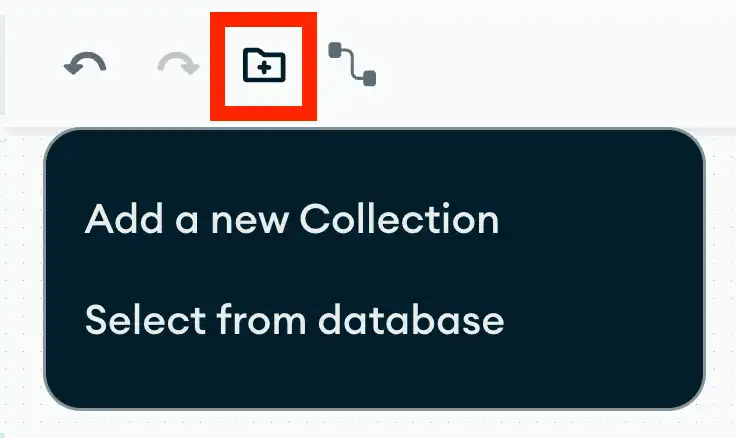
If you click Select from database, a dialog box opens that allows you to select existing collections from your database that aren't included in your diagram.
Note
If you imported your diagram or you aren't connected to the database used to generate your diagram, Compass prompts you to select a database connection.
Rename a Collection
To rename a collection in your entity-relationship diagram:
Remove a Collection
To delete a collection from your diagram: